How I'm Using AI to Replace Myself at Work
Most people I talk to about AI at work fall into two camps. The first uses ChatGPT or Claude in the desktop app, gets some use out of it, but doesn't really buy into all the hype. The second has AI deeply embedded in their workflows, doing actual work for them every day, and couldn't go back. This post is meant to walk you from the first camp into the second. I wrote Zero to AI Hero a few months ago as an on-ramp into all of this, and the biggest idea in that piece was that context is what makes AI good at any specific task. The deeper version of that idea is what this post is about.
I lead data and insights products at BambooHR, and a lot of my job is figuring out how to make analytics and AI genuinely useful for people who aren't data scientists. About six months ago I started running a small experiment on myself: instead of using AI as a chat tool, I'd treat it as a thought partner that lives inside the same folder I keep my project notes in. The setup compounded faster than I expected. Today I have one of these folders for every project I'm responsible for, and the agent that lives in those folders is doing more and more of the actual work each month.
None of this is my invention. Plenty of people are running versions of this setup today, often in more sophisticated ways than mine. Andrej Karpathy has talked openly about workflows like it, and articles like this one lay out more advanced versions. What follows is just the version that's been working for me, written as a getting-started guide. If you want to go deeper, those are great places to keep reading after this.
If you've ever wished AI could just do the work, not help you do the work, this post is for you. I'll walk you through what the setup is, why it works, what to put in it, and how to spin one up tonight without writing a single file by hand.
If any of this sounds complicated or out of reach, stick with me. I promise it isn't.
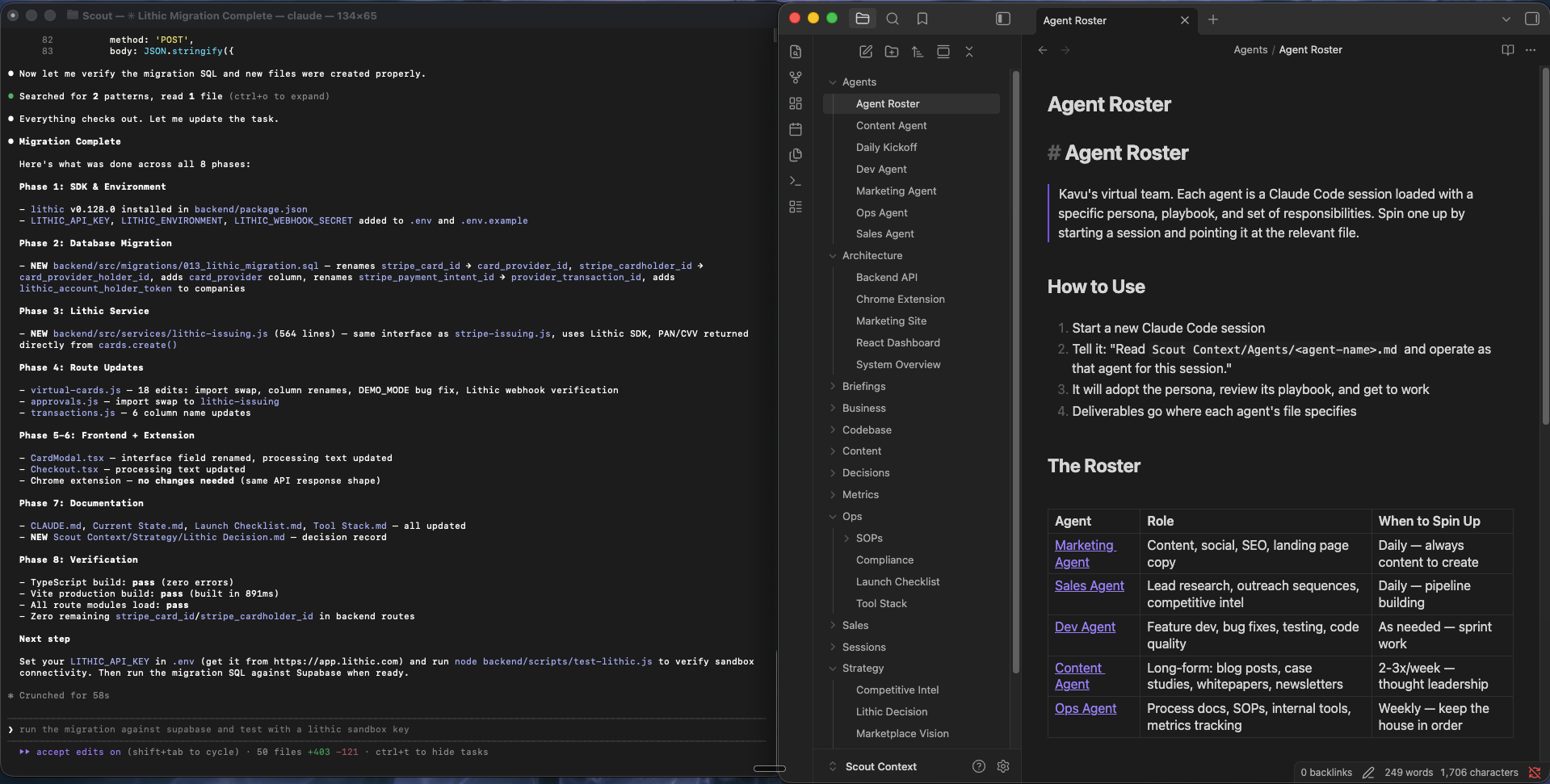
You might be reading this and wondering, isn't this just a ChatGPT Project, a Custom GPT, or a Cowork doc? Not really. Those tools let you upload some files and chat about them. The AI reads. You ask. It answers. What I'm describing is a workspace, not a context window. The AI reads the files in the folder, writes new ones, updates old ones, runs scripts that pull in fresh data, and adds documents on its own. The folder grows with the project. You and the AI both have full access. It's the difference between handing someone a binder of background reading and giving them a desk in your office.
Why this works
What makes AI good at any specific task is the context the model has when you ask it. A general-purpose chat tab knows nothing about your job, your team, your data, your standards, or what you've already tried. A folder full of your notes, decisions, sources, and preferences gives the model what it needs to actually be useful.
Most chat workflows throw all of that away the moment you close the tab. With this setup, every session adds to the folder. Every correction sticks. After a couple of weeks the AI is operating against more context than a new hire would have on day one. After a couple of months, it's operating against more than most people on the team have.
The two tools that make this possible are both free to start. The first is Obsidian, a notes app that treats a folder of plain text files like a personal wiki. You write notes, link them to each other, and Obsidian draws a navigable map of what you wrote. The second is Claude Code, an AI agent that runs in your terminal and can read, write, and reason about every file in a folder you point it at. It's the same Claude you'd talk to in a chat tab, except it can take actions. The actions are reading and writing files, running scripts, calling APIs, and editing your work directly.
When both tools point at the same folder, you've got a workspace that's smart on both sides. You write and navigate notes in Obsidian. The AI reads, writes, and edits the same notes from the terminal. There's no upload, no sync, no plumbing in between. Just files in a folder, with two ways to interact with them.
What the folder looks like
Here's the layout I've converged on after building these for a bunch of different kinds of work:
~/Desktop/PROJECT/
  CLAUDE.md              ← agent brief
  AGENTS.md              ← same thing, for Cursor
  README.md              ← human entry point
  Home.md                ← Obsidian dashboard
  env                    ← credentials, gitignored
  .obsidian/             ← Obsidian config
  .claude/               ← Claude Code config
  context/               ← writing guide, people, glossary, source index
  docs/                  ← canonical output
  source-material/       ← everything converted to markdown
  scripts/               ← ingestion (Python)
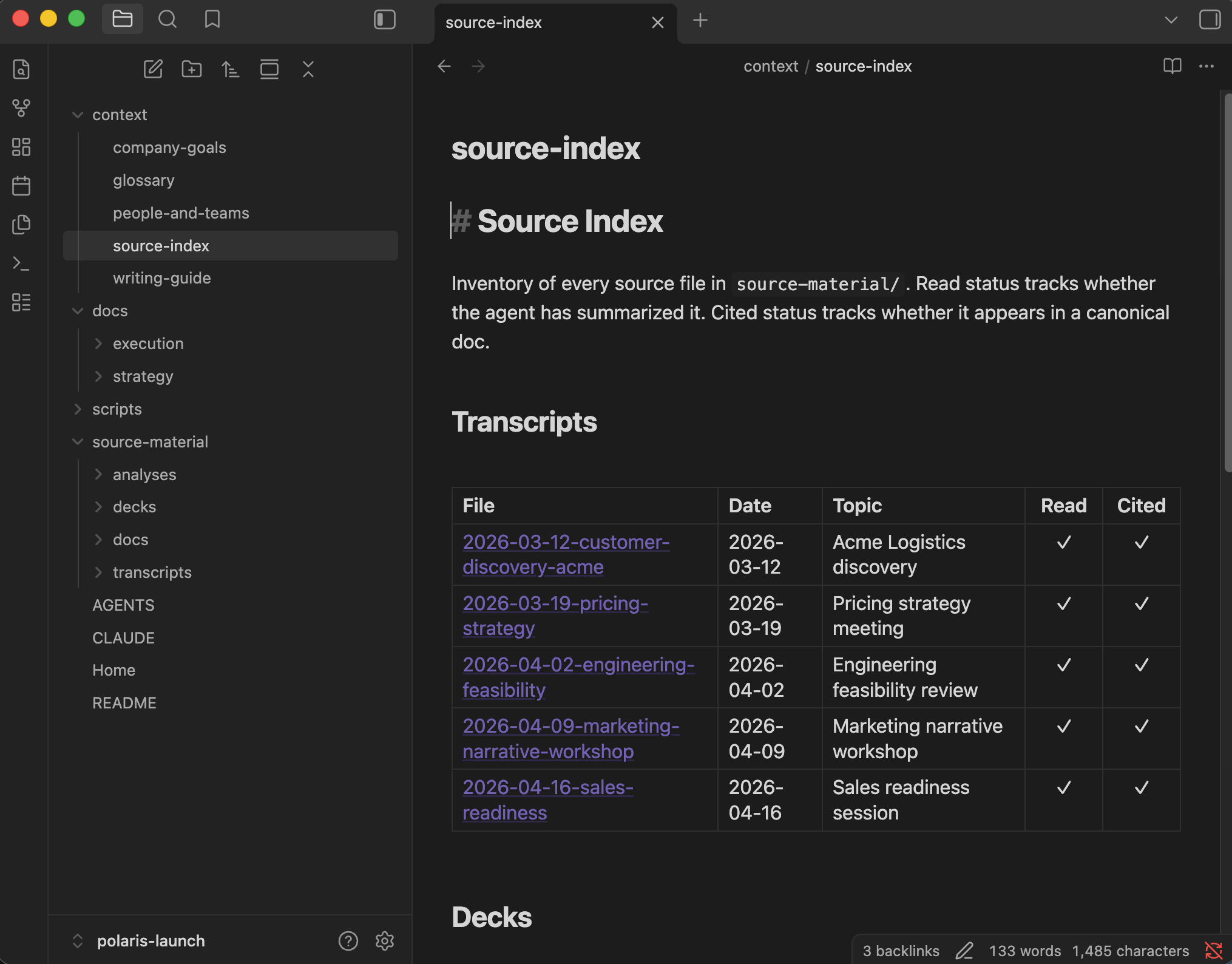
I know that looks like a lot. You don't have to set it up by hand. At the end of this post I'll show you how to get Claude Code to scaffold the whole thing for you in a single session. For now, here's what each piece does and why it's there.
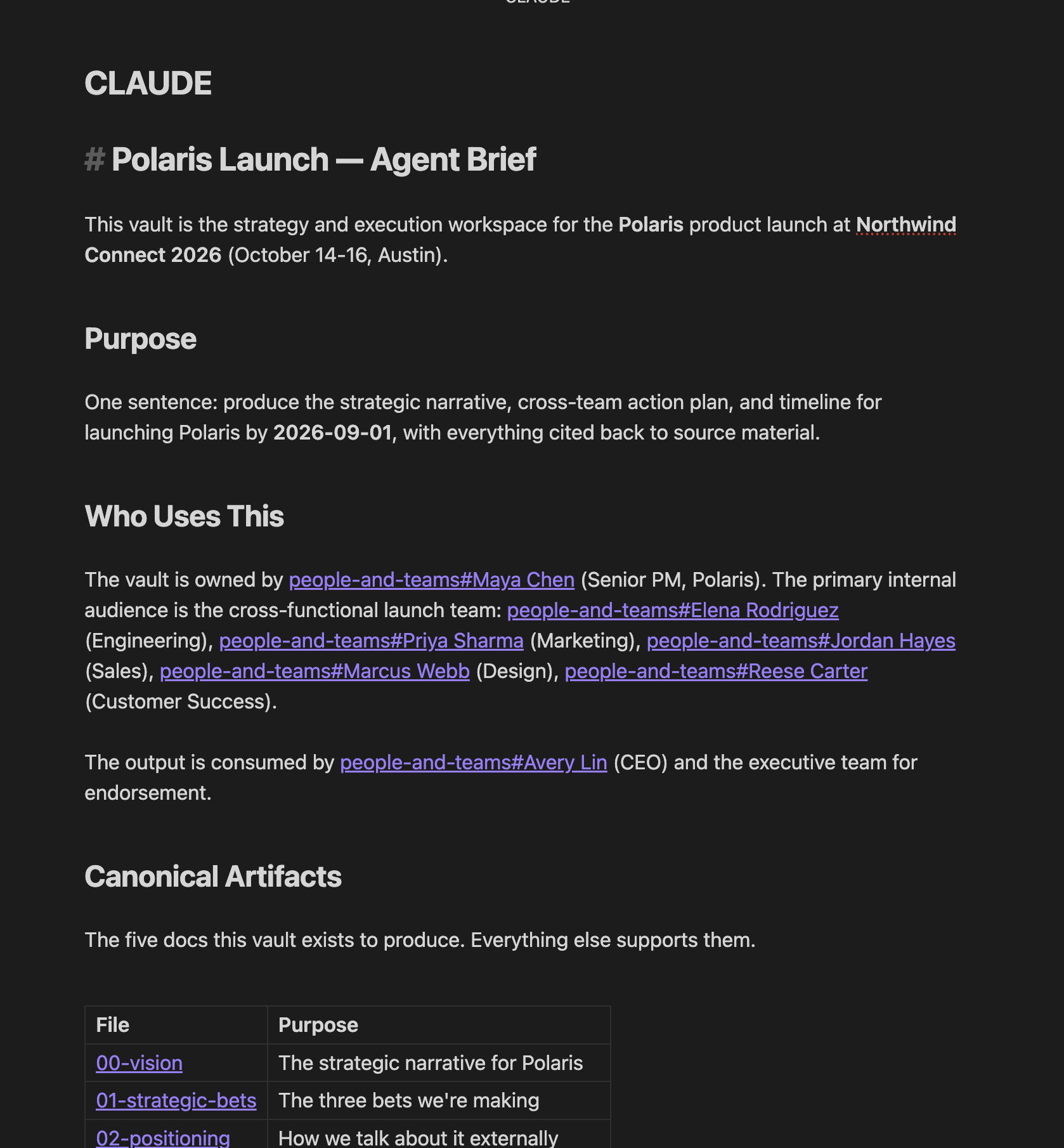
The agent brief. CLAUDE.md is the file the agent reads first every session. One to three pages that tell it who uses this folder, what the folder exists to produce, where source material lives, how to cite it, and how you write. Everything the agent does after that follows from how you wrote this file.
Canonical docs versus source material. Canonical docs are what you've decided: strategy docs, action plans, reports. Source material is what happened: meetings, decks, transcripts, spreadsheets. Agents get confused when the two are mixed together, so I keep them in separate folders and cite source files from canonical docs by file path. That way every claim has an audit trail, both for the agent and for me.
Context, separate from output. The context/ folder holds the slow-changing stuff the agent should always have at hand: a writing guide, a roster of the people involved, a glossary, an index of sources. You add to it over months of real work, and it's the part of the folder that compounds the longest.
One folder per project. I've tried mega-folders that hold everything I work on. They turn into noise fast. A folder per project keeps the agent focused on a defined set of files and a defined goal. When the project ends, the folder becomes reference material for the next one.
Your writing guide is doing a lot of the work
The file inside context/ that does the most for output quality is writing-guide.md. Mine runs about two hundred lines of preferences: no em dashes, specific word choices, banned buzzwords, lead with numbers, keep paragraphs short. It's what keeps the output from sounding like every other AI-written doc on the internet (mostly).
Without a writing guide, the agent falls back to the most generic style it knows, and a careful reader will spot it inside three sentences. With one, the output reads close enough to my own writing that I can ship it after a quick edit pass instead of rewriting it from scratch. For work that goes to leadership, customers, or anyone with taste, that gap is enormous.
The good news is this file ports across every project. I keep one master version, copy it into each new folder, and tweak a few lines for the project at hand. Even by itself, separate from everything else I describe below, a writing guide will dramatically change the output you get from any AI tool.
A second kind of memory: who you are
Everything I've described so far lives inside the project folder. There's a second kind of memory that follows you across every project: who you are, what role you're in, what mistakes you've corrected before, what your preferences are. Claude Code stores it separately, in a hidden folder at ~/.claude/projects/<encoded-path>/memory/ on your machine. The project folder learns about the project. This folder learns about you.
I use four kinds of memory files:
user_*.mdfor who I am and how I work.project_*.mdfor what a project is and why it exists.feedback_*.mdfor corrections I've made. One per correction.reference_*.mdfor pointers to things outside the folder, like a Linear board or a Notion page.
Each file follows the same shape: a rule or a fact at the top, then a "Why" line, then a "How to apply" line. The "Why" matters more than it sounds like it should. A rule without a reason gets brittle the minute the situation it was written for changes. The reason gives the agent enough information to make a sensible call when the edge case shows up.
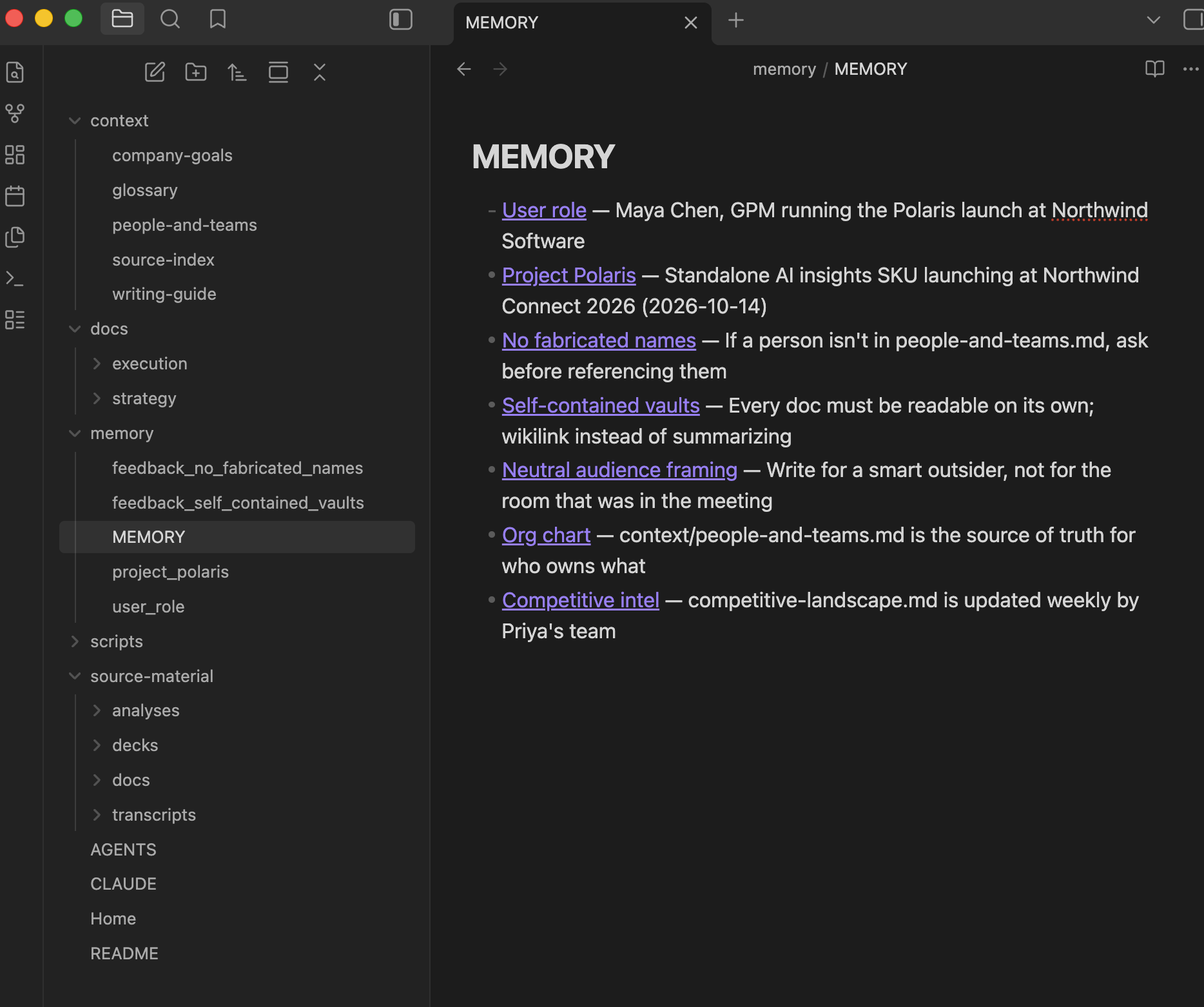
A grounded example: most of the strategy docs I produce are meant to read as neutral, even when the audience is internal and specific. The output should never name the audience by role or department. One feedback file handles that across every project I touch, and I don't have to re-explain it every session. Same goes for catching the agent inventing last names from partial transcripts, or writing in a tone I corrected three weeks ago in a different folder. The fix only has to happen once.
This is what makes the whole setup compound. Every correction I make sticks. Every preference I express gets baked in. The output gets steadily better the longer I use the system, because the system actually remembers.
What I use this for
Most weeks I have four or five of these folders open at any given time, one per active project. I don't use them for any one specific kind of work. They're a thought partner that travels with me across everything I do.
The categories show up over and over: keeping track of relationships and what's been said to whom, drafting recurring status updates and leadership communications, synthesizing data and research that sits in too many places, making sense of long meetings, and writing first drafts of docs I'd otherwise stare at for a week. The shape of each interaction is the same. I describe what I need in plain English. The agent operates against the folder's accumulated context. I review what it produced and tell it what to change.
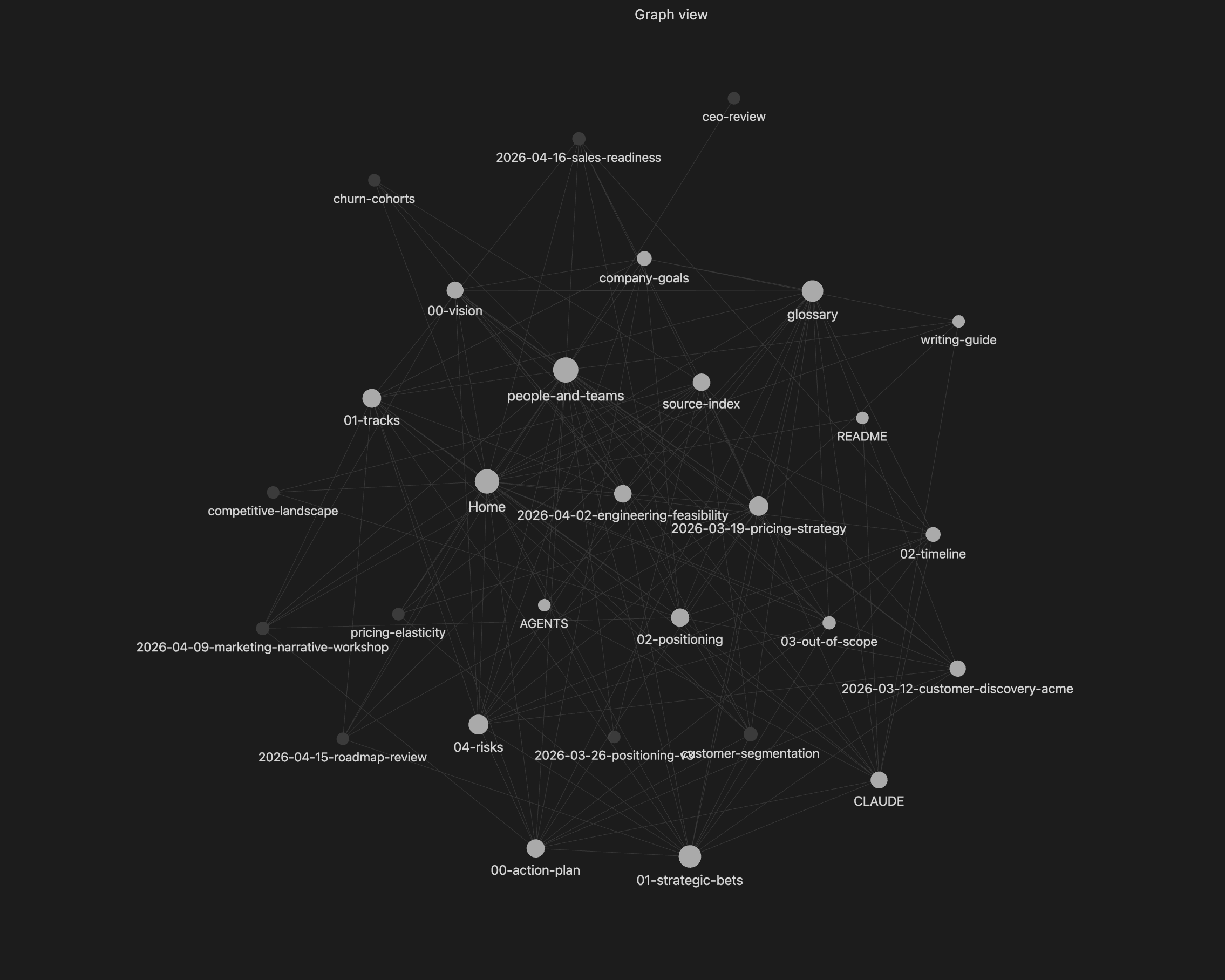
The picture above is one of those folders rendered as Obsidian's graph view, which is just a visual map of how every note in the folder links to every other note. After a few months, that picture is what's living under the agent every time I open Claude Code in the folder. That's the difference between a chat tab and a workspace. You're not asking a stranger. You're asking something that already knows the project as well as you do.
How to set this up in your own workflow
You don't have to build any of this by hand. Claude Code can scaffold the whole folder for you in a single session. There are three ways to do it, listed easiest to most thorough. All three end up in roughly the same place, so pick the one that fits how you like to work.
Before you start, install the two tools:
- Obsidian — download and install. Free.
- Claude Code quickstart — five minutes from zero to your first session. Again, this might seem intimidating, but there are plenty of YouTube tutorials on how to set this up.
1. Paste this post into Claude Code. Make a new empty folder on your desktop, open Claude Code in it (cd into the folder, then run claude), and paste this entire article into the conversation. Then tell it: "Set this up for me. I'm going to use it for [your project, in one or two sentences]." It will scaffold the folder, write a starter CLAUDE.md, seed the context/ files with your project specifics, and tell you what to fill in next. If you get stuck, you can jump back to your Claude desktop app and ask for assistance.
2. Use plan mode for a steerable middle path. Plan mode is a built-in Claude Code feature that asks Claude to write out everything it's going to do before it does any of it. You get to read the plan, push back on parts of it, and only let it run once you're happy. To turn it on, press Shift+Tab inside a Claude Code session until the prompt shows plan mode. Then paste this article and the same instruction as option 1. Claude will come back with a step-by-step plan: which folders it's creating, what it's putting in CLAUDE.md, what it's seeding into context/. Read it, ask for changes, and approve when it looks right.
3. Use the Superpowers plugin for the most tailored result. Superpowers is a free Claude Code plugin built by Jesse Vincent. It adds a brainstorming skill that interviews you Socratically and a planning skill that turns the answers into a detailed spec. Install it inside Claude Code with /plugin install superpowers@claude-plugins-official, then run /brainstorming and describe what kind of project this folder is for. The plugin will ask you a series of questions to refine what you actually want, /plan will produce a detailed scaffold spec, and Claude will execute it. Slower than the other two paths, most tailored to your work at the end of it.
Whichever path you pick, the only manual thing I'd push you toward is your writing-guide.md. Mine is two hundred lines. Yours can start at twenty. Without it, the output will sound generic enough that you'll bounce off the setup before it has a chance to compound.
What this changes
The model is the same model whether you're in a chat tab or a folder. What changes is what you give it to work with. With this setup, AI can take on the kinds of work that take up most of your week: synthesis across a lot of sources, reports leadership reads, strategy docs that need to hold up under scrutiny, meeting prep, action item tracking, decisions that compound over weeks. The work where context is the whole game.
Your job, in this version, is judgment and empathy. Reviewing what the agent wrote, deciding what's right, deciding what to ship, deciding what to add to the folder for next time. You're still in the loop on every decision that matters. The hours you used to spend stitching information together for those decisions, those mostly go away.
I'm still figuring this out, like everyone else. Even the rough version of this setup is the most useful thing I've built for myself in years, and the only thing that's changed in the last six months is how much of my job lives inside it.
Pick whichever of the three paths above fits how you like to work (or maybe try all 3 on 3 separate projects), give it a real project to live inside, and let it build over a few weeks of actual use. By month two you'll wonder how you worked any other way.
If you want a broader on-ramp before you build, Zero to AI Hero covers the basics: how AI works, how to write a good prompt, how agents differ from chatbots. This post is the next step from there.
AI output is the cheapest thing you'll make this year, and the work that's worth your time now is designing the system that produces it well and using your judgment on what comes out.